
Learn · Try · Make it yours
Focus and manual blocking
You have a task to finish and a phone within reach. Protect a short stretch of time, then let the timer bring your apps back.
New to Appcognito? Learn where the main screens are and what the terms mean.
Understand the idea
Give your next task a clear boundary
A Focus session is useful when you want to begin now and already know when you want to stop. A manual block suits an open-ended task: you turn it on and turn it off yourself. For a repeating routine, use a rule instead.
The key ideaFocus ends with its timer. A manual block stays on until you turn it off, subject to any locks.
02 · Make it work on your phone
Block distractions for 25 minutes
Your setup
Before you beginFocus is Appcognito’s timed block. Decide which app to test, or create a saved block list first.
- Tap Home in the bottom navigation, then open Focus.
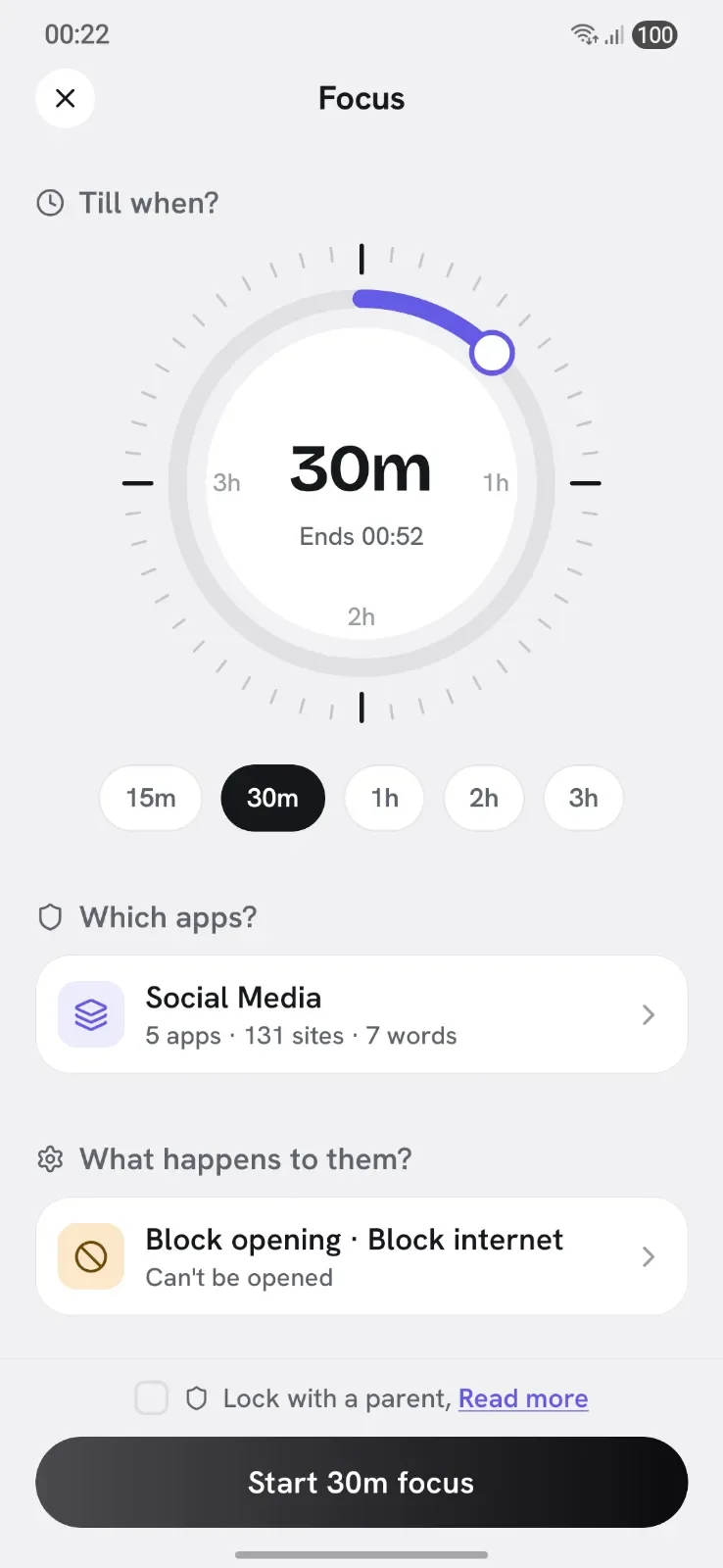
- Set the duration to 25 minutes. The displayed end time tells you when this session will finish.
- Choose the apps or saved block list to block. Leave the session unlocked for this first test so you can make changes.
- Start Focus and approve the device permissions requested for your selections. Return to Appcognito if a permission opens Android Settings.
Check it workedOpen a selected app while the timer is running: it should be blocked. After the session ends, try again. If it stays blocked, another active rule or manual block may still include it.
Need help or want to undo?
For an app-opening block, check that Block opening is the chosen effect. In the permission checklist, allow Usage access (detecting the app in use) and Display over other apps (showing the blocking screen).
End the session early if allowed, or let its timer finish. A lock or Strict mode can prevent ending it early.
Explore the full referenceMore options, feature details and answers
The five ways
A block list, from Home
One tap. On until you turn it off.
A Focus session
A countdown. Ends when the timer does.
A rule
Starts and stops on a trigger you pick.
A widget
Block without opening the app.
A hand-picked block
One app, site or word on its own.
From Home
On Home, find the row of Block lists you pinned. Tap one to see what it holds, tap Block to switch it on. While it is blocking, its footer offers Unblock.
A block list that is on cannot be removed from Home. A tile that vanished mid-block would leave you no way back to it. Tap Add block list to pin more.
Hand-picked
Three lists on Home that belong to no block list. Use them when you want one thing blocked.
| List | You add | Notes |
|---|---|---|
| Apps | Any installed app. | What happens depends on your block mode: internet cut, will not open, or both. |
| Websites | A domain or a pasted URL. | Blocked in every browser at once, including the ones inside other apps. You can also block a whole category: Social, Video, Gaming, Shopping, News, Dating, Gambling. |
| Keywords | A word, name, topic or /regex/. | Caught anywhere on screen, in any app and any language. Needs the Accessibility service. |
Keyword scanning always checks the whole screen. There is no mild mode. Starter packs cover Gambling, Addictive Substances, Violence and gore, and Profanity, and you can add your own on top.
Built a list worth keeping? Appcognito offers to save it as a block list, so it is one tap next time.
Focus sessions
Focus is a timer. Three choices when you start one:
- Till when. Choose how long the session should last. The app also shows its end time.
- Block what. A block list, or apps and sites picked on the spot.
- Start with lock. Hands the session to someone else's code, so you cannot end it early. Pro.
While it runs, Home shows the time left and what is blocked. Ending early is possible unless you locked it or Strict mode is on.
The usual? on the start screen replays your last duration and block list in one tap.
Rules
A rule blocks on its own: a trigger, a schedule, what it blocks, and what happens to it. A schedule, arriving somewhere, joining a Wi-Fi network, plugging in, passing a usage limit, and 12 more. They work with the app closed and survive a reboot.
Full detail: Rules and all 17 triggers.
Widgets
Focus widget
Blocks for a set time, then ends itself. You pick the duration and list when you place it.
One-tap widget
Blocks until you stop it. Set it up once.
Starting a block from a widget is Pro. You can place and set one up before upgrading. There is also a Habit widget for checking in.
Anything a widget is blocking appears on Home under Active widgets, so a widget block is never running invisibly.
What happens to a blocked app
Blocking is not only on or off. Five effects, from a hard stop to a nudge:
| Effect | What happens | Good for |
|---|---|---|
| Block opening | The app does not open. A full screen covers it and sends you back. | The strongest stop, and the only one that works on games. |
| Block internet | The app opens but loads nothing. No feed, no videos, no messages. | Apps you still need offline. |
| Slow internet | The app opens, but everything loads slowly. Three speeds: Slow, Slower and Crawl. | Making a feed not worth the wait. |
| Mute notifications | Its notifications disappear as they arrive. The app still opens. | Apps that pull you back with a ping. |
| Dim the screen | The screen darkens while you are in the app. Three strengths: Soft, Medium and Deep. | Taking the shine off without a hard stop. |
Block opening and Block internet can run at once. The default is Global blocking in Settings, Block settings. It is used by hand-picked blocks, block lists turned on from Home, and any rule without its own choice.
Website blocking is separate and always on for anything on a list. Because it runs on the device, a blocked site fails in every browser at once.
What you see when blocked
A full screen, carrying three things:
- The reason. Every block names the rule behind it, so you are never guessing.
- Your block message. One line you choose. 10 templates ship with the app. Writing your own is Pro. Set once in Settings, not per rule.
- Today's numbers. How many times you opened this app today, and for how long.
Aurith brings the screen in himself. He pulls it across when you open a blocked app, and taps his watch when your time runs out.
Still need it? opens the app for a short pass: 5, 15 or 30 minutes. If you switched the Unblock Gate on, a quick mini-game or a 30 second breather comes first. Not offered in Strict mode or on locked rules.
Have an Unlock key? Then Still need it? asks for your tag instead of the game: tap or scan it, then pick 5, 15 or 30 minutes. Lost your tag? Wait 15 minutes, then unlock once. Pro, and not in Strict mode.
Customize screens, in Settings under Block settings, lets you design the block screen, the app picker and the screen break: your own background, and where each part sits. Pro.
Recent blocks are listed in Stats with their reasons attached.
The countdown
An app on a time limit, a session or a pass shows a countdown while you use it. Two styles, picked in Settings, Block settings, Timer style:
Island
A small pill by the camera. Tap it to open it up. The default.
Floating
A ring that sits over the app.
- Blocks in. In the last minutes before a rule starts, the same countdown shows how long you have left.
- +5 min. When time is nearly up, add five minutes. Once per app per day, and never in Strict mode or on locked rules. Pro.
- Move or hide it. Drag the ring anywhere, or close the island for the rest of the session. Pro.
Why it is still blocked
A block beats an allow. If two rules disagree, the app stays blocked. Otherwise an exception added in one place would quietly punch a hole in a block you set when you were thinking more clearly.
So turning one thing off does not always unblock. When that happens, the app names what is still holding it:
- A rule, with a Turn off rule button.
- A Focus session, with End focus.
- A block list you have on from Home, or a widget.
It warns the other way too. Allow an app while another rule blocks it, and you are told it will stay blocked before you rely on it.
Turning blocking off
Three levels of friction, softest first.
- NothingBy default, off is one tap.
- Strict modeRules cannot be paused, stopped or deleted. Focus runs to its timer. A challenge runs to its last day. Leaving the mode takes 12 or 24 hours. Pro.
- A parental or partner lockSomeone else holds the code. You need their rotating 6 digit code to release a lock, and their master password to remove it. Pro.
The Unblock Gate does not guard turning a block off. It sits on the block screen, in front of Still need it?.
Turn off all blocking in Settings stops everything at once. It warns you first: any running challenge ends with it. Parental-locked items stay on.
Intention limit
A different shape of block, and a rule of its own. While it runs, every unlock asks what you came for. Only the apps you pick open until you lock the screen again. It is aimed at the unlock you did not really decide to make.
Free opens one app per unlock. Pro sets your own number, up to five, and lets the rule run only at certain times. Pinned apps sit at the top of the picker. Nothing is blocked or pre-picked, it is only easier to reach.
The Play Store always opens during an Intention session, so it never stands in the way of an upgrade.
New to Appcognito? Learn where the main screens are and what the terms mean.
Understand the idea
Give your next task a clear boundary
A Focus session is useful when you want to begin now and already know when you want to stop. A manual block suits an open-ended task: you turn it on and turn it off yourself. For a repeating routine, use a rule instead.
The key ideaFocus ends with its timer. A manual block stays on until you turn it off, subject to any locks.
02 · Make it work on your phone
Block distractions for 25 minutes
Your setup
Before you beginFocus is Appcognito’s timed block. First create a block list and select its apps in Apple’s picker, the system app-selection window.
- Tap Home in Appcognito’s bottom navigation, then open Focus.
- Set 25 minutes and choose the saved list containing your selected apps.
- Allow Screen Time when requested. If you included websites, also approve the site filter.
- Start Focus without a lock for the first test. The session runs until its timer ends unless you end it early when allowed.
Check it workedOpen one selected app during the session. Apple’s blocking screen, called a shield, should appear. After the timer ends, try again; another active block may still restrict it.
Need help or want to undo?
Check Screen Time approval and the app selections in the list. A website entry is a domain such as example.com; it does not turn off the internet for just one app.
End the session early if allowed, or wait for the timer. Locks and Strict mode can prevent ending it early.
Explore the full referenceMore options, feature details and answers
Features shared with Android
iOS includes manual blocking, timed Focus sessions, automatic rules, Strict mode, the Unblock Gate, temporary app passes, and NFC/QR unlock keys. These features use Apple’s blocking screens and device permissions; the steps can differ from Android.
Ways to start a block
Start a block list from Home, use a timed Focus session, enable a rule, or use a configured widget. All depend on the apps and sites you selected, along with the permissions they need.
App blocks use Apple’s Screen Time blocking screens, called shields. Site blocks filter website addresses (domains such as example.com). A domain block applies across the device, rather than disconnecting just one app.
Focus sessions and shields
Select the lists or apps to block, choose a duration and start Focus. Open a selected app to check its Screen Time shield. Where the shield offers an Open action, follow the in-app steps for a timed pass; blocking returns when the pass ends.
iOS does not expose the same app-opening and app-exit events as Android. A timed pass is not proof that the app stayed in the foreground for that whole period.
Supported block effects
| Effect | On iOS |
|---|---|
| Block opening | Screen Time shields selected apps. |
| Block websites | Selected domains are blocked across the device. |
| Keywords | Safari filtering, with the extensions enabled. |
| Slow internet, dim screen, mute notifications, jump away | Not available. |
Take a temporary pass with the Unblock Gate
The Unblock Gate is available on iOS too. It adds a mini-game or breathing step before an allowed temporary pass. Choose the gate in Settings → Block settings → Unblock Gate.
- On Apple’s blocking screen, use the offered action to request access.
- Open the notification that takes you back to Appcognito. Allow notifications if requested for this flow.
- Complete the configured gate or use a paired unlock key when asked, then choose an offered pass duration.
- Use the app during the pass. Blocking returns when its time ends.
A pass does not disable the whole rule or unblock every app in its list. Strict mode and parental locks can prevent a pass. The iOS flow returns to Appcognito because Apple’s blocking screen cannot host the same interactive gate Android shows over the blocked app.
Keep a commitment with Strict mode
Strict mode is available on both platforms with Pro or eligible trial access. Find it under Settings → Block settings → Block mode. It prevents ending an active Focus session early and restricts loosening, stopping or deleting enabled rules and ending active Challenges.
Review the exit delay before switching it on. Ordinary manual blocks and One-tap widget blocks remain reversible; parental-locked items follow their own code flow. Test your selections before adding a commitment.
Focus and One-tap Home Screen widgets
Both platforms have blocking widgets. On iOS, Focus and One-tap widgets require iOS 18 or later and Pro or eligible trial access.
- First save a block list and choose its apps in Apple’s picker inside Appcognito.
- Add an Appcognito widget using your device’s Home Screen widget controls.
- Choose Focus for a timed block, or One-tap for a block you stop yourself. Configure its block list; for Focus, also choose the duration.
- Use the widget button and test a selected app. Tapping the rest of the widget opens Appcognito.
A widget starts and stops its own block. Stopping it does not cancel another rule or Focus session that also blocks the app. Strict mode can hold a timed Focus widget until its timer ends.
See timed activity on the Lock Screen
iOS shows supported timed blocking activity through a Live Activity on the Lock Screen and Dynamic Island on compatible devices. Tap it to open Blocking now in Appcognito and see the individual timers. Its presentation is controlled by iOS; Android’s floating timer and overlay controls are separate features.
If an app stays blocked
Check whether another rule, manual block, Focus session or locked commitment still includes it. Ending one source does not cancel the others. Parental locks and Strict mode can prevent changes; follow their release process.
If nothing blocks, check Screen Time authorization and the selected apps in each list. For websites, check the site-filter permission. See iOS permissions.